Hyper-Datasets Page
Use the Hyper-Datasets Page to navigate between and manage hyper-datasets.
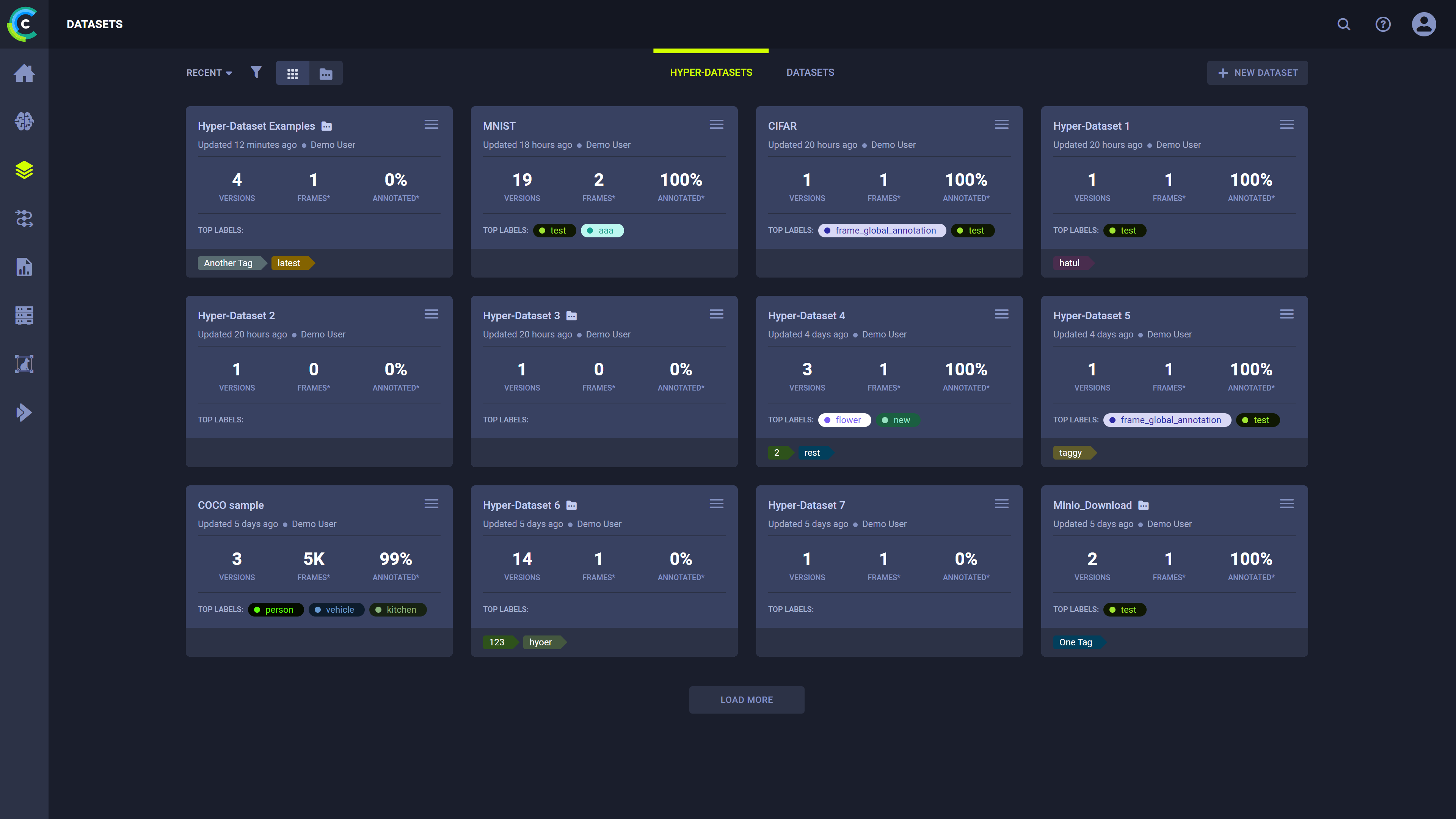
You can view the Hyper-Datasets page in Project view  or in List view
  . In List
view, all hyper-datasets are shown side-by-side. In Project view, hyper-datasets are organized according to their projects, and
top-level projects are displayed. Click on a project card to view the project's hyper-datasets.
. In List
view, all hyper-datasets are shown side-by-side. In Project view, hyper-datasets are organized according to their projects, and
top-level projects are displayed. Click on a project card to view the project's hyper-datasets.
Click on a Hyper-Dataset card to open the dataset's version list, where you can view and manage the dataset versions' lineage and contents.
Filter the hyper-datasets to find the one you're looking for more easily. These filters can be applied by clicking  :
:
- My Work - Show only hyper-datasets that you created
- Tags - Choose which tags to filter by from a list of tags used in the hyper-datasets.
- Filter by multiple tag values using the ANY or ALL options, which correspond to the logical "AND" and "OR" respectively. These options appear on the top of the tag list.
- Filter by the absence of a tag (logical "NOT") by clicking its checkbox twice. An X will appear in the tag's checkbox.
Project Cards
In Project view, project cards display a project's summarized hyper-dataset information:
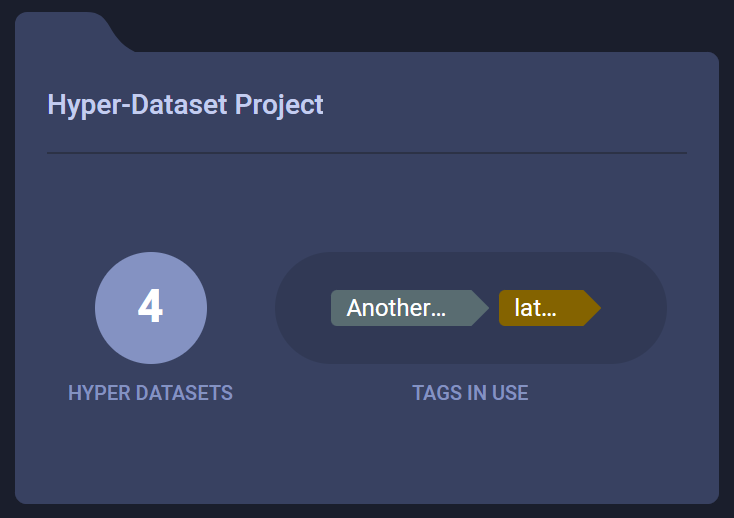
- Project name
- Number of hyper-datasets in project
- Tags used by hyper-datasets in project
Click on a project card to view its hyper-datasets.
Hyper-Dataset Cards
In List view, the Hyper-Dataset cards display summarized dataset information:
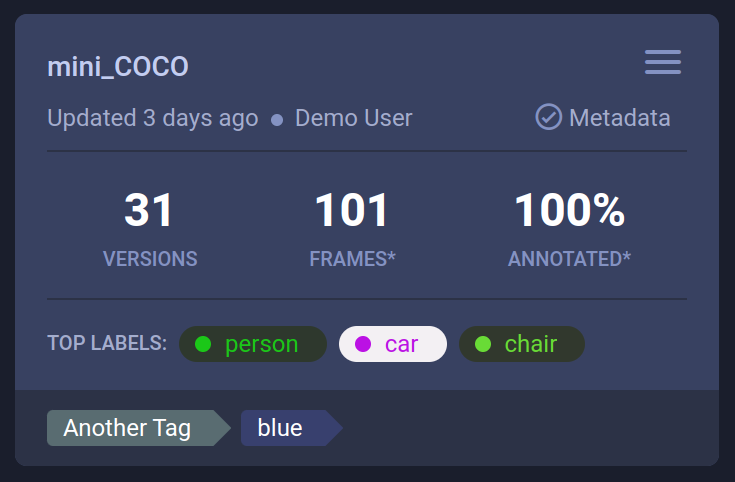
- Dataset name
- Time since last update. Hover over elapsed time to view date of last update
- User updating the Dataset
- If the dataset contains dataset-level metadata, the card displays the

Metadataindicator, which opens the Metadata editor on click - The number of versions in the Dataset
- The total number of frames in all versions of the Dataset. If an asterisk (*) appears next to FRAMES, then you can hover over it and see the name of the version whose frames were last updated
- The percentage of frames annotated in all versions of the Dataset. If an asterisk (*) appears next to ANNOTATED, then you can hover over it and see the name of the version whose frames were last annotated
- If the Dataset version's status is Published, then the Dataset's top labels appear (colors are editable). If the Dataset version is Draft, then no labels appear
- Tags
To change the label color coding, hover over a label color, click the hand pointer, and then select a new color.
Hyper-Dataset Actions
Click  on the top right
of a dataset card to open its context menu and access dataset actions:
on the top right
of a dataset card to open its context menu and access dataset actions:
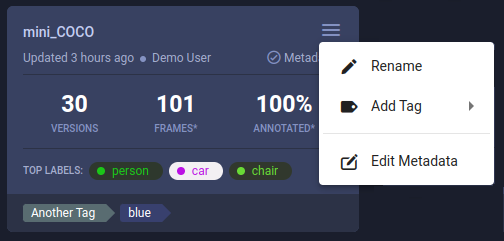
- Rename - Change the dataset's name
- Add Tag - Add label to the dataset to help easily classify groups of datasets.
- Edit Metadata - Modify dataset-level metadata. This will open the metadata edit window, where you can edit the section
Create New Hyper-Datasets
To create a Hyper-Dataset, click the + NEW DATASET button in the top right of the page, which will open a New Dataset modal.
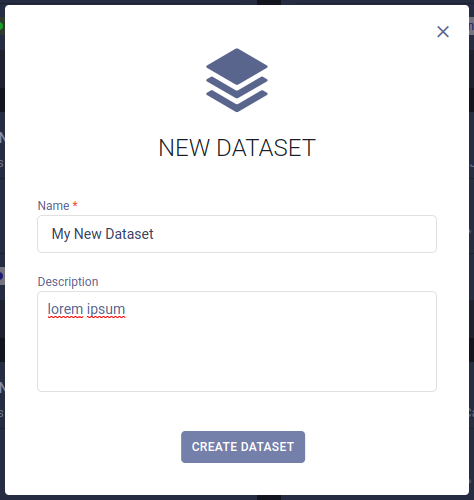
This creates a new Hyper-Dataset that contains a single, empty draft version.