AWS Autoscaler
The ClearML AWS Autoscaler App is available under the ClearML Pro plan
The AWS Autoscaler Application optimizes AWS EC2 instance usage according to a user defined resource budget: define your budget by specifying the type and amount of available compute resources.
Each resource type is associated with a ClearML queue whose status determines the need for instances of that resource type (i.e. spin up new instances if there are pending jobs on the queue).
When running, the autoscaler periodically polls your AWS cluster. The autoscaler automatically terminates idle instances based on a specified maximum idle time, or spins up new instances when there aren't enough to execute pending tasks in a queue (until reaching the defined maximum number of instances). You can add an init script, which will be executed when each instance is spun up.
For more information about how autoscalers work, see Autoscalers Overview.
Autoscaler Instance Configuration
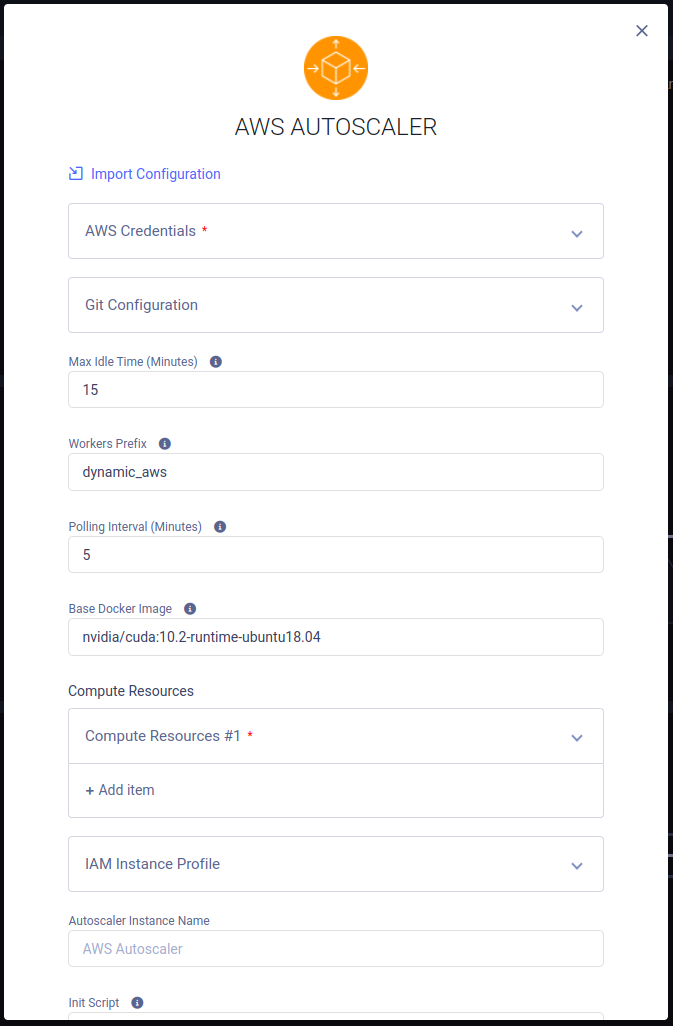
- Import Configuration - Import an app instance configuration file. This will fill the configuration wizard with the values from the file, which can be modified before launching the app instance
- AWS Credentials - Credentials with which the autoscaler can access your AWS account. See Generating AWS IAM Credentials
- Use IAM role - Select if you are running your autoscalers on your own EC2 instances which are attached to an IAM role. In such a case, no AWS IAM credentials are required
- AWS Region - AWS Region where the EC2 instances will be spun up
- AWS Access Key ID and AWS Secret Access Key - The credentials with which the autoscaler will access your AWS account for spinning EC2 instances up/down
- Git Configuration - Git credentials with which the ClearML Agents running on your EC2 instances will access your
repositories to retrieve the code for their jobs
- Git User
- Git Password / Personal Access Token
- Max Idle Time (optional) - Maximum time in minutes that an EC2 instance can be idle before the autoscaler spins it down
- Workers Prefix (optional) - A Prefix added to workers' names, associating them with this autoscaler
- Polling Interval (optional) - Time period in minutes at which the designated queue is polled for new tasks
- Base Docker Image (optional) - Default Docker image in which the ClearML Agent will run. Provide a Docker stored in a Docker artifactory so instances can automatically fetch it
- Compute Resources
- Resource Name - Assign a name to the resource type. This name will appear in the Autoscaler dashboard
- EC2 Instance Type - See Instance Types for full list of types
- Run in CPU mode - Check box to run with CPU only
- Use Spot Instance - Check box to use a spot instance. Else, a reserved instance is used
- Regular Instance Rollback Timeout - Controls when the autoscaler will revert to starting a regular instance after failing to start a spot instance. It will first attempt to start a spot, and then wait and retry again and again. Once the time it waited exceeded the Regular Instance Rollback Timeout, the autoscaler will try to start a regular instance instead. This is for a specific attempt, where starting a spot fails and an alternative instance needs to be started.
- Spot Instance Blackout Period - Specifies a blackout period after failing to start a spot instance. This is related to future attempts: after failing to start a spot instance, all requests to start additional spot instances will be converted to attempts to start regular instances, as a way of "easing" the spot requests load on the cloud provider and not creating a "DOS" situation in the cloud account which might cause the provider to refuse creating spots for a longer period.
- Availability Zone - The EC2 availability zone to launch this resource in
- AMI ID - The AWS AMI to launchAMI prerequisites
The AMI used for the autoscaler must include docker runtime and virtualenv
- Max Number of Instances - Maximum number of concurrent running instances of this type allowed
- Monitored Queue - Queue associated with this instance type. The tasks enqueued to this queue will be executed on instances of this type
- EC2 Tags (optional) - AWS instance tags to attach to launched EC2 instances. Insert key=value pairs, separated by commas
- EBS Device (optional) - Disk mount point
- EBS Volume Size (optional) - Disk size (GB)
- EBS Volume Type (optional) - See Amazon EBS volume types for full list of types
- Instance Key Pair (optional) - AWS key pair that is provided to the spun EC2 instances for connecting to them via SSH. Provide the Key Pair's name, as was created in AWS. See Amazon EC2 key pairs for more details
- Security Group ID (optional) - Comma separated list of AWS VPC Security Group IDs to attach to the launched instance. Read more here
- VPC Subnet ID - The subnet ID For the created instance. If more than one ID is provided, the instance will be started in the first available subnet. For more information, see What is Amazon VPC?
- + Add Item - Define another resource type
- IAM Instance Profile (optional) - Set an IAM instance profile for all instances spun by the Autoscaler
- Arn - Amazon Resource Name specifying the instance profile
- Name - Name identifying the instance profile
- Autoscaler Instance Name (optional) - Name for the Autoscaler instance. This will appear in the instance list
- Apply Task Owner Vault Configuration - Select to apply values from the task owner's ClearML vault when executing the task
- Warn if more than one instance is executing the same task - Select to print warning to console when multiple instances are running the same task. In most cases, this indicates an issue.
- Exclude .bashrc script - Select in order to skip
.bashrcscript execution - Init script (optional) - A bash script to execute after launching the EC2 instance
- Additional ClearML Configuration (optional) - A ClearML configuration file to use by the ClearML Agent when executing your experiments
- Export Configuration - Export the app instance configuration as a JSON file, which you can later import to create a new instance with the same configuration
Configuration Vault
The Configuration Vault is available under the ClearML Enterprise plan.
You can utilize the configuration vault to set the following:
aws_regionaws_credentials_key_idandaws_secret_access_key- AWS credentials for the Autoscalerextra_vm_bash_script- A bash script to execute after launching the EC2 instance. This script will be appended to the one set in theInit scriptfield of the autoscaler wizardextra_clearml_conf- ClearML configuration to use by the ClearML Agent when executing your experiments. This configuration will be appended to that set in theAdditional ClearML Configurationfield of the autoscaler wizard
For example, the following configuration would be applied to all autoscaler instances:
auto_scaler.v1.aws {
   aws_region: "us-east-1"
   aws_access_key_id: "<key>"
   aws_secret_access_key: "<secret>"
   extra_vm_bash_script: """
     echo "Hello world!"
   """
   extra_clearml_conf: """
     agent.docker_force_pull: true
   """
}
To configure a specific instance(s), add a regular expression to match the autoscaler's Workers Prefix under
auto_scaler.v1.aws.match. Within this section, input the specific configuration which will be merged to any
matched autoscaler's configuration.
For example:
auto_scaler.v1.aws {
    # this will be applied to all AWS autoscalers
    aws_region: "us-east-2"

    match {
        "^aws_test$": {
            # this will be applied only to AWS autoscalers who's workers prefix exactly matches aws_test
            extra_vm_bash_script: """ echo "Hello world!" """
        }
        "^aws_.*$": {
            # this will be applied to all AWS autoscalers who's workers prefix starts with aws_
            extra_vm_bash_script: """ echo "Goodbye!" """
        }
    }
}
Dashboard
Once an autoscaler is launched, the autoscaler's dashboard provides information about available EC2 instances and their status.
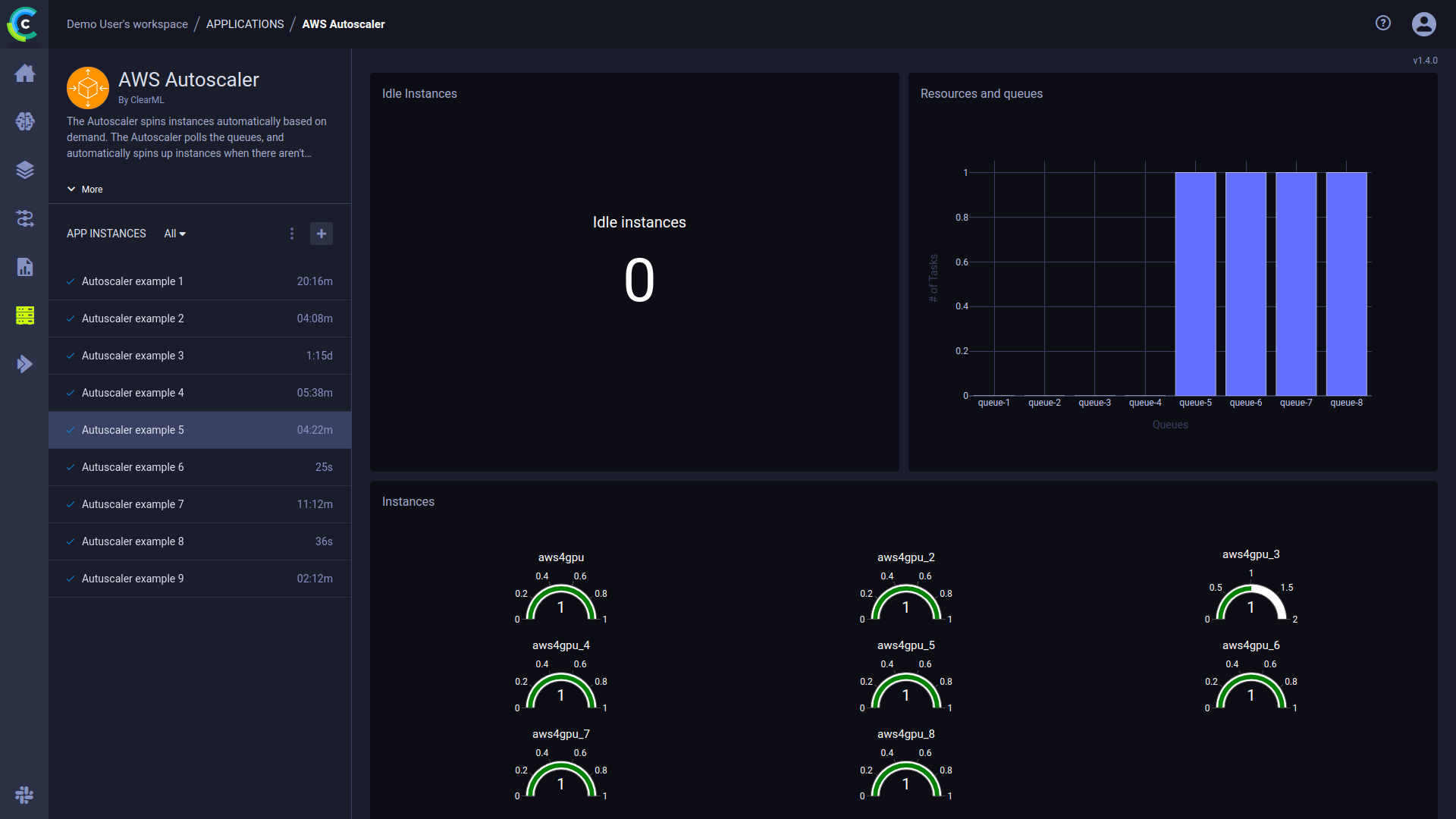
The autoscaler dashboard shows:
- Number of idle instances
- Queues and the resource type associated with them
- Number of current running instances
- Console: the application log containing everything printed to stdout and stderr appears in the console log. The log shows polling results of the autoscaler's associated queues, including the number of tasks enqueued, and updates EC2 instances being spun up/down.
To make the autoscaler console log show additional debug information, change an active app instance's log level to DEBUG:
- Go to the app instance task's page > CONFIGURATION tab > USER PROPERTIES section
- Hover over the section > Click
Edit> Click+ADD PARAMETER - Input
log_levelas the key andDEBUGas the value of the new parameter.

The console's log level will update in the autoscaler's next iteration.
- Instance log files - Click to access the app instance's logs. This takes you to the app instance task's ARTIFACTS tab,
which lists the app instance's logs. In a log's
File Pathfield, click to download the complete log.
You can embed plots from the app instance dashboard into ClearML Reports. These visualizations
are updated live as the app instance(s) updates. The Enterprise Plan and Hosted Service support embedding resources in
external tools (e.g. Notion). Hover over the plot and click  to copy the embed code, and navigate to a report to paste the embed code.
Generating AWS IAM Credentials
The autoscaler app accesses your AWS account with the credentials you provide.
You will need to create an AWS policy which grants the autoscaler app the required access privileges, attach the policy to an IAM user, and create credentials keys for that user to configure in the autoscaler app:
In your AWS account, go to Services Menu > IAM > Policies
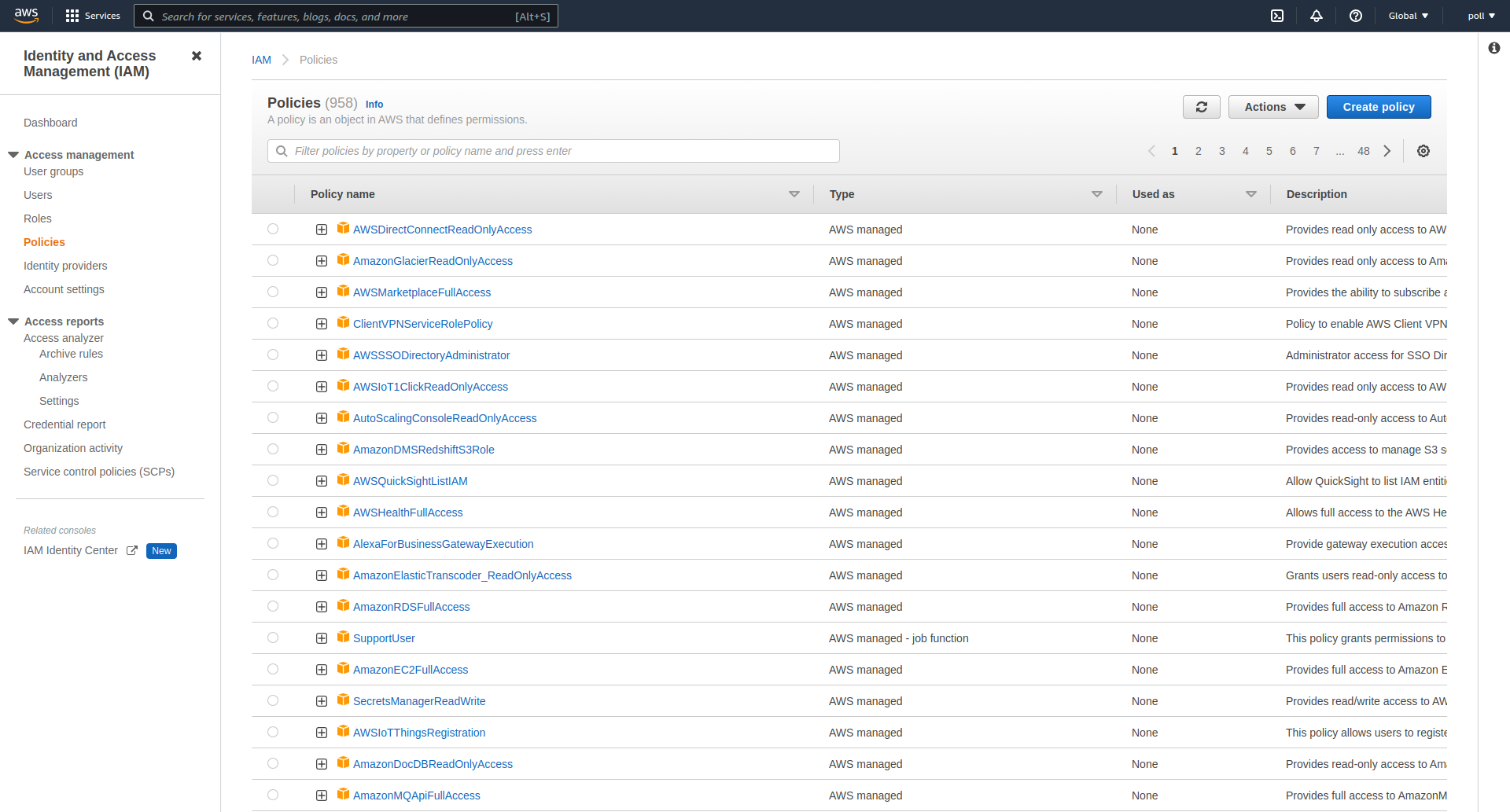
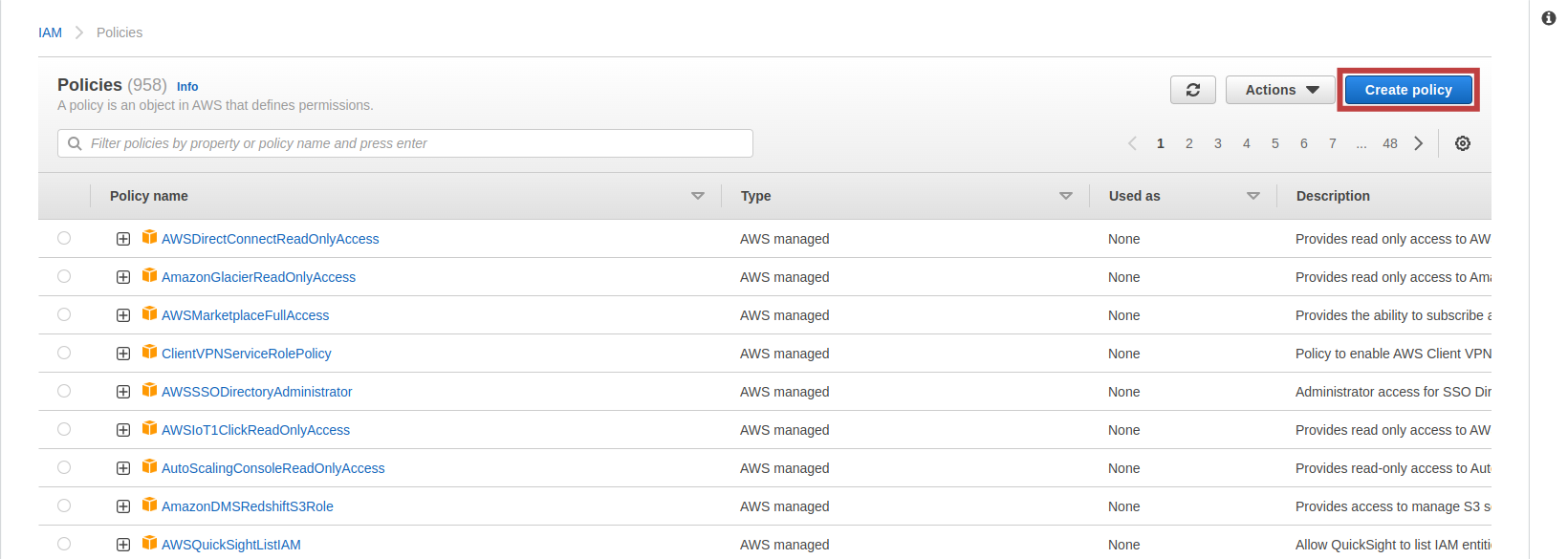
Under policies, click Create Policy
In the Create Policy modal, click on the JSON option
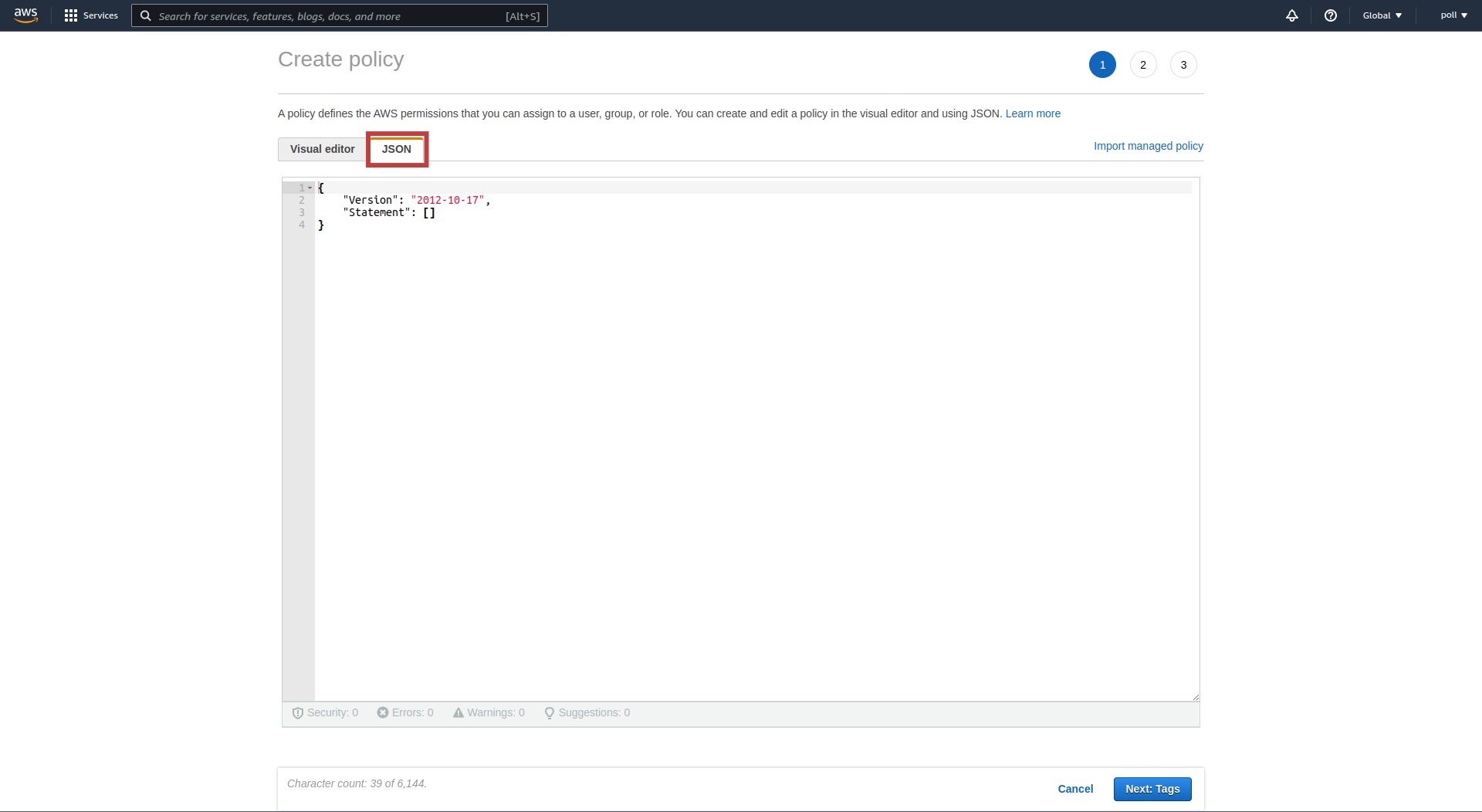
Insert the following policy into the text box:
{
    "Version": "2012-10-17",
    "Statement": [
        {
            "Sid": "VisualEditor0",
            "Effect": "Allow",
            "Action": [
                "ec2:DescribeInstances",
                "ec2:TerminateInstances",
                "ec2:RequestSpotInstances",
                "ec2:DeleteTags",
                "ec2:CreateTags",
                "ec2:RunInstances",
                "ec2:DescribeSpotInstanceRequests",
                "ec2:GetConsoleOutput"
            ],
            "Resource": "*"
        }
    ]
}
This is a basic policy which gives the autoscaler access to your account. See example policy with finer security configuration here.
Complete creating the policy
Attach the created policy to an IAM user/group whose credentials will be used in the autoscaler app (you can create a new IAM user/group for this purpose)
Obtain a set of AWS IAM credentials for the user/group to which you have attached the created policy in the previous step
AWS IAM Restricted Access Policy
The template policy below demonstrates how to restrict the autoscaler to launch EC2.
The policy includes the following permissions:
- Enables performing certain EC2 actions on all resources in specified regions
- Enables performing certain EC2 actions on all resources of specified instance types
- Enables performing certain EC2 actions on specified resources (in selected subnet and security group, and any network-interface, volume, key-pair, instance)
- Enables performing an EC2 action to use on a specified AMI on condition that the
ec2:Owneris a specified owner
{
    "Version": "2012-10-17",
    "Statement": [
        {
            "Sid": "GeneralEC2",
            "Effect": "Allow",
            "Action": [
                "ec2:AttachClassicLinkVpc",
                "ec2:CancelSpotInstanceRequests",
                "ec2:CreateFleet",
                "ec2:Describe*",
                "ec2:GetConsoleOutput",
                "ec2:DetachClassicLinkVpc",
                "ec2:ModifyInstanceAttribute",
                "ec2:RequestSpotInstances"
            ],
            "Resource": "*",
            "Condition": {
                "StringEquals": {
                    "aws:RequestedRegion": "<region>"
                }
            }
        },
        {
            "Sid": "RunEC2InstanceType",
            "Effect": "Allow",
            "Action": "ec2:RunInstances",
            "Resource": "*",
            "Condition": {
                "StringLikeIfExists": {
                    "ec2:InstanceType": [
                        "<instance type 1>",
                        "<instance type 2>",
                        "<instance type 3>"
                    ]
                }
            }
        },
        {
            "Sid": "RunEC2",
            "Effect": "Allow",
            "Action": [
                "ec2:CreateTags",
                "ec2:DeleteTags",
                "ec2:StartInstances",
                "ec2:StopInstances",
                "ec2:TerminateInstances",
                "ec2:DescribeVolumes",
                "ec2:DescribeAvailabilityZones",
                "ec2:CreateVolume",
                "ec2:AttachVolume",
                "ec2:DetachVolume"
            ],
            "Resource": [
                "arn:aws:ec2:<region>:<account id>:subnet/<subnet id>",
                "arn:aws:ec2:<region>:<account id>:network-interface/*",
                "arn:aws:ec2:<region>:<account id>:volume/*",
                "arn:aws:ec2:<region>:<account id>:key-pair/*",
                "arn:aws:ec2:<region>:<account id>:security-group/<security group id>",
                "arn:aws:ec2:<region>:<account id>:instance/*"
            ]
        },
        {
            "Sid": "RunEC2AMI",
            "Effect": "Allow",
            "Action": [
                "ec2:RunInstances"
            ],
            "Resource": [
                "arn:aws:ec2:<region>::image/<ami id>"
            ],
            "Condition": {
                "StringEquals": {
                    "ec2:Owner": "<owner>"
                }
            }
        }
    ]
}